Welcome to the fast-paced world of software development. If you are starting your journey in the United States tech industry, you likely hear developers talk about version control constantly. Mastering these tools is a fundamental requirement for any modern engineer who wants to succeed in a professional team environment.

Think of these platforms as a safety net for your creative work. They allow you to track changes, collaborate with peers, and revert to previous versions of your code whenever necessary. Learning Git for beginners provides the confidence needed to manage complex projects without the fear of losing progress.
By the end of this guide, you will understand the high-level value of these systems. You will see how they streamline your workflow and help you build software more effectively. Let’s dive into the essential concepts that every developer needs to know to thrive today.
Key Takeaways
- Version control acts as a critical safety net for your coding projects.
- Collaboration becomes seamless when using shared repositories.
- Tracking changes allows developers to experiment without risking stable code.
- Professional software teams rely on these tools for daily operations.
- Mastering these systems is a core skill for career growth in tech.
Understanding Version Control Systems
Have you ever wondered how teams collaborated on code before the digital age of automation? In the early days of programming, managing changes was a manual and often chaotic process. Today, version control systems act as the backbone of professional software development, ensuring that every line of code is tracked and protected.
Why Developers Need Version Control
At its core, a version control system provides a safety net for your work. It allows multiple developers to contribute to the same project simultaneously without the fear of overwriting someone else’s progress. This collaborative environment is essential for modern teams.
Beyond collaboration, these tools offer several key advantages:
- Full History Tracking: You can see exactly who changed what and when.
- Easy Reversion: If a new feature breaks your app, you can instantly roll back to a stable state.
- Branching Capabilities: Developers can experiment with new ideas in isolated environments without affecting the main codebase.
“The greatest benefit of version control is the ability to experiment without the fear of permanent failure.”
— Anonymous Developer
The Evolution of Code Management
The version control evolution has been nothing short of remarkable. In the past, developers relied on manual file backups, often saving folders with names like “project_final_v2” or “project_final_real_final.” This method was prone to human error and made it nearly impossible to merge changes from different team members.
As software projects grew in complexity, the industry moved toward centralized systems, and eventually, the distributed models we use today. This shift has transformed how we think about code. By automating the tracking process, we have moved away from the stress of manual file management toward a more streamlined and reliable workflow.
| Method | Reliability | Collaboration |
|---|---|---|
| Manual Backups | Low | Difficult |
| Centralized Systems | Medium | Moderate |
| Modern Distributed Systems | High | Excellent |
Git and GitHub Explained for Beginners
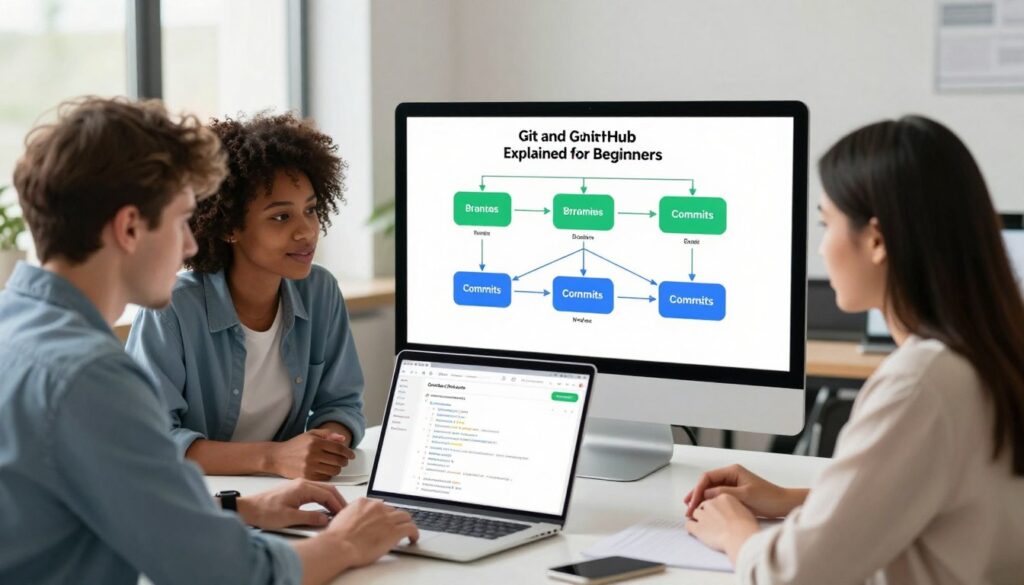
Git and GitHub are often mentioned together, but they serve very different purposes in your development workflow. Many people mistakenly believe they are the same thing, which can lead to confusion when you are just starting out. Having Git and GitHub explained for beginners is the first step toward mastering professional code management.
Defining Git as a Local Tool
At its core, Git is a powerful piece of software that lives directly on your computer. It acts as a version control engine, tracking every change you make to your files over time. For Git for beginners, it is helpful to think of it as a time machine for your code.
Because it is a local tool, you do not need an internet connection to save your progress. You can create snapshots of your work, experiment with new features, and revert to previous versions whenever you need to. It runs entirely within your terminal or through a desktop application on your machine.
Defining GitHub as a Cloud Platform
While Git handles the heavy lifting on your computer, GitHub serves as a remote hub located in the cloud. It is a hosting service that allows you to upload your local Git repositories to the internet. This makes it possible to share your work with others and access your projects from any device.
“Version control is the foundation of modern software development, allowing teams to collaborate without fear of losing their progress.”
— Anonymous Developer
GitHub provides a visual interface that makes managing your code much easier. It offers tools for project management, issue tracking, and team collaboration. By storing your code on this platform, you ensure that your work is backed up safely away from your local hardware.
The Relationship Between Git and GitHub
The relationship between these two is simple: Git is the tool you use to manage your history, and GitHub is the place where you store that history for others to see. You use Git commands to prepare your work, and then you “push” those changes to GitHub to update your remote project.
| Feature | Git | GitHub |
|---|---|---|
| Primary Role | Version Control Engine | Cloud Hosting Service |
| Location | Local Computer | Remote Server |
| Connectivity | Works Offline | Requires Internet |
| Main Purpose | Tracking Changes | Collaboration & Backup |
Understanding this distinction is vital for any developer. Once you grasp that Git manages the logic of your versions and GitHub manages the visibility of your project, you will be ready to start building your own software portfolio with confidence.
Setting Up Your Development Environment
Building a solid foundation for your development work starts with a proper Git installation guide. By preparing your machine correctly, you ensure that your version control workflow remains smooth and error-free from the very first commit.
Whether you are working on a personal project or a professional team application, having the right tools is essential. This setup process is the gateway to managing your code history with confidence.
Installing Git on Windows and macOS
To begin, you must download the official installer from the Git website. For Windows users, the “Git for Windows” package provides a bash emulator and a graphical interface to make the transition easier.
If you are using macOS, you can install Git through the terminal using Homebrew or by downloading the installer directly. Following a reliable Git installation guide ensures that your system path is updated correctly, allowing you to run commands from any folder.
Configuring Your User Identity
Once the installation is complete, you need to tell Git who you are. Every commit you make is linked to your identity, which is vital for collaboration.
Open your terminal or command prompt and run the following commands to set your global username and email address:
- git config –global user.name “Your Name”
- git config –global user.email “your.email@example.com”
These settings are permanent for your user profile. They ensure that your contributions are correctly attributed in the project history.
Choosing a Code Editor for Git Integration
Modern development relies heavily on integrated tools to save time. Most developers prefer using a code editor like Visual Studio Code because it features built-in Git support.
With these editors, you can stage files, commit changes, and view branch differences without leaving your workspace. This integration simplifies your daily tasks and helps you stay focused on writing high-quality code.
| Platform | Primary Method | Configuration Step |
|---|---|---|
| Windows | Git for Windows Installer | Global Identity Setup |
| macOS | Homebrew or Installer | Global Identity Setup |
| Linux | Package Manager (apt/yum) | Global Identity Setup |
Core Concepts of the Git Workflow
Every professional software development workflow relies on a clear understanding of how Git tracks changes. By mastering the three-stage architecture, you ensure that your project history remains clean and logical. This system provides a safety net that allows you to experiment without fear of losing your progress.
Understanding the Working Directory
The working directory is the folder on your computer where you actively write and edit your code. Think of this as your creative workspace where files are constantly changing as you build new features. Git monitors this directory to detect any modifications, additions, or deletions you make during your daily tasks.
The Staging Area Explained
The Git staging area acts as a vital buffer between your active work and your permanent project history. It allows you to curate exactly which changes are ready to be saved. Instead of committing everything at once, you can select specific files or lines of code to include in your next update.
This level of control is what makes the staging process so powerful for developers. It ensures that only polished, intentional changes reach your repository. By using this area effectively, you avoid cluttering your history with unfinished or accidental edits.
Committing Changes to Your History
Once you have staged your desired changes, the final step is to create a commit. A commit acts as a permanent snapshot of your project at a specific point in time. Each commit includes a descriptive message that explains what was changed and why, making it easy to navigate your project history later.
| Stage | Function | Action |
|---|---|---|
| Working Directory | Active editing | Modify files |
| Git staging area | Preparation | Stage changes |
| Local Repository | History storage | Commit changes |
By following this structured software development workflow, you maintain a professional and organized codebase. Consistent use of these three stages will significantly improve your ability to collaborate and track your progress over time.
Branching and Merging Strategies
Branching serves as the backbone of a modern software development workflow, allowing teams to experiment safely. By isolating your work, you ensure that the main version of your application remains stable while you test new ideas. Implementing effective Git branching strategies is the best way to keep your project organized as it grows in complexity.
Creating and Switching Between Branches
When you start a new task, you should create a dedicated branch. This keeps your changes separate from the primary codebase. You can create a new branch using the command git branch [name] and move into it with git checkout [name] or the newer git switch [name] command.
Always verify your current location by running git branch to see which branch is active. Working in a separate branch allows you to commit your progress frequently without affecting the production environment. This practice is essential for maintaining a clean project history.
Merging Code Changes Safely
Once your feature is complete and tested, you will want to bring those changes back into your main branch. This process is known as merging. You first switch to the target branch, usually named main or master, and then execute git merge [feature-branch].
Git will attempt to combine the histories automatically. If the changes do not overlap, the merge completes smoothly. This streamlined approach ensures that your team can integrate new features with minimal downtime.
Handling Merge Conflicts Like a Pro
Sometimes, Git merge conflicts occur when two branches modify the same line of code in different ways. Do not panic when this happens, as it is a normal part of collaborative coding. Git will pause the process and mark the specific files that require your manual attention.
You must open these files in your editor to decide which code to keep. After you resolve the differences, you simply stage the files and finish the commit. The following table summarizes the primary commands used during this process:
| Command | Action | Purpose |
|---|---|---|
| git branch | Create | Starts a new isolated workspace |
| git switch | Navigate | Moves between different branches |
| git merge | Combine | Integrates changes into the main branch |
| git status | Inspect | Identifies files with conflicts |
Getting Started with GitHub Repositories
Once you have mastered local version control, it is time to bring your projects to the web. Effective GitHub repository management allows you to store your code safely and access it from any device with an internet connection.

Creating Your First Remote Repository
To begin, log into your account and click the plus icon in the top right corner to select “New repository.” Give your project a clear, descriptive name that reflects its purpose. You can also add a brief description to help others understand what your code does.
Decide whether you want to initialize the repository with a README file. This file is essential for documenting your project’s goals and usage instructions. Once you click the create button, your remote space is ready to receive your files.
Connecting Local Projects to GitHub
Establishing a remote repository connection is a straightforward process that links your computer to the cloud. First, navigate to your project folder in your terminal or command prompt. You must initialize the folder as a Git repository if you have not already done so.
Next, use the command provided by the platform to link your local folder to the new remote URL. After linking, you can push your existing commits to the cloud. This action ensures that your hard work is backed up and ready for future collaboration.
Understanding Public Versus Private Repositories
Choosing the right visibility setting is a key part of managing your work. Public repositories are visible to everyone, which is great for open-source contributions. Private repositories keep your code hidden, making them ideal for personal projects or sensitive company data.
| Feature | Public Repository | Private Repository |
|---|---|---|
| Visibility | Open to everyone | Restricted access |
| Collaboration | Open source focus | Team-based control |
| Best Use | Portfolio building | Private development |
Consider your goals carefully before finalizing your choice. You can always change the visibility settings later if your project needs evolve. Security and accessibility remain the top priorities when deciding how to share your code with the world.
Collaborating with Others on GitHub
GitHub transforms individual coding into a powerful team effort through shared workflows. By utilizing GitHub repository management, developers can work on complex software without stepping on each other’s toes. This environment fosters innovation and allows teams to scale their projects efficiently.
The Concept of Forking Projects
Forking is a fundamental practice in collaborative coding that allows you to create a personal copy of someone else’s project. When you fork a repository, you gain a sandbox environment to experiment with new features or bug fixes. This process ensures that your changes do not impact the original codebase until you are ready to share them.
This model is particularly popular in open-source communities. It empowers contributors to propose improvements without needing direct write access to the main project. You maintain full control over your fork while keeping a clear path to sync with the upstream repository.
Submitting Changes via Pull Requests
Once you have finished your work in a fork, you use Git pull requests to notify the project maintainers. A pull request acts as a formal proposal to merge your specific changes into the main project. It provides a dedicated space for discussion, where you can explain the purpose of your updates.
The interface allows you to show exactly which lines of code were modified. This transparency helps maintainers understand your logic quickly. It is a vital step in ensuring that only high-quality code enters the primary repository.
Reviewing and Merging Team Contributions
Reviewing code is a critical responsibility for any team. Maintainers examine the proposed changes to ensure they meet project standards and do not introduce new bugs. They may leave comments or request specific adjustments before approving the merge.
Once the review process is complete, the maintainer merges the code into the main branch. This action updates the project and closes the request. The following table outlines the key stages of this collaborative lifecycle.
| Action | Purpose | Responsibility |
|---|---|---|
| Forking | Create a personal copy | Contributor |
| Pull Request | Propose code changes | Contributor |
| Code Review | Verify quality and logic | Maintainer |
| Merging | Integrate final updates | Maintainer |
Essential Git Commands Every Developer Should Know
Navigating your project history becomes much easier once you grasp the fundamental Git command line basics. While graphical interfaces are helpful, the terminal provides unmatched speed and control over your repository. Mastering these tools allows you to troubleshoot issues and maintain a clean project structure with confidence.
Tracking Status and History
The most common command you will use is git status. This simple instruction shows you exactly which files are modified, staged, or untracked in your current directory. It acts as your primary compass before you finalize any changes.
To view your project’s evolution, use git log. This command displays a chronological list of your previous commits, including unique identifiers and author details. Keeping an eye on your history helps you understand how your code has changed over time.
Undoing Mistakes with Reset and Revert
Every developer makes mistakes, but knowing how to fix them is what separates the pros from the beginners. When you need to manage errors, understanding Git reset and revert is essential for maintaining a healthy codebase.
The git revert command creates a new commit that effectively undoes the changes of a previous one. This is the safest way to fix errors in a shared project because it preserves your history. Conversely, git reset is a more powerful tool that moves your branch pointer back to a previous state, which is useful for cleaning up local work before sharing it.
Synchronizing with Remote Servers
Once your local work is ready, you must share it with your team. The git push command sends your local commits to a remote repository, making them available to others. It is the standard way to update your project on platforms like GitHub.
To bring in changes from your teammates, use git pull. This command fetches the latest updates from the remote server and merges them into your current branch automatically. If you only want to see what others have done without merging, git fetch is your best choice for staying informed without altering your local files.
Best Practices for Writing Commit Messages
Have you ever looked back at your code and wondered why you made a specific change months ago? Effective communication within your repository is a hallmark of a professional developer who truly cares about team productivity. Following commit message best practices ensures that your project history remains a readable and useful narrative for everyone involved.

The Importance of Descriptive Messages
Many beginners fall into the trap of writing vague messages like “fixed bug” or “updated files.” These labels provide zero context for future contributors or even your future self. Instead, focus on explaining the “why” behind a change rather than just the “what.”
Good documentation is the difference between a project that thrives and one that dies in obscurity.
— Anonymous Developer
When you write a descriptive message, you help your teammates understand the intent behind your logic. This clarity reduces the time spent in code reviews and makes debugging significantly faster. Adopting these commit message best practices will set you apart as a thoughtful and collaborative engineer.
Structuring Your Commit History
A well-structured history acts as a roadmap for your project’s evolution. You should aim for atomic commits, which means each commit represents a single, logical change. This approach makes it much easier to revert specific features if something goes wrong later.
Consider the following table to help you distinguish between poor and professional commit habits:
| Commit Type | Poor Example | Professional Example |
|---|---|---|
| Bug Fix | “Fixed stuff” | “Fix: Resolve null pointer in login form” |
| New Feature | “Added code” | “Feat: Implement user authentication flow” |
| Refactor | “Changed things” | “Refactor: Optimize database query performance” |
| Documentation | “Updated docs” | “Docs: Add installation steps to README” |
By maintaining a clean and consistent structure, you turn your commit log into a valuable resource. Always keep your subject lines concise while providing detailed explanations in the body of the message when necessary. This level of detail is essential for long-term project maintenance.
Security and Privacy in Version Control
Safeguarding your sensitive data is a fundamental skill for anyone using modern version control tools. Implementing robust Git security practices ensures that your hard work remains protected from unauthorized access. By taking a few proactive steps, you can maintain a clean and secure development environment throughout your entire project lifecycle.
Managing Sensitive Data with Gitignore
One of the most common mistakes developers make is accidentally pushing private files to a public repository. You might inadvertently include API keys, database passwords, or local environment variables in your commits. Proper Gitignore file configuration acts as a safety net to prevent these files from ever reaching the cloud.
To get started, create a file named .gitignore in the root directory of your project. Inside this file, simply list the names or patterns of the files you want Git to ignore. Once saved, Git will automatically exclude these sensitive items from your tracking history, keeping your credentials safe and private.
Using SSH Keys for Secure Authentication
Beyond protecting your files, you must also secure the connection between your local machine and your remote host. Relying on standard passwords can leave your account vulnerable to various threats. Instead, Git SSH authentication provides a much more secure way to interact with platforms like GitHub.
SSH keys use cryptographic pairs to verify your identity without ever sending your password over the network. By generating a unique key pair on your computer and adding the public key to your GitHub settings, you establish an encrypted tunnel for all your data transfers. This method is widely considered the industry standard for maintaining high-level security in professional development workflows.
Common Pitfalls and How to Avoid Them
Mastering version control requires more than just knowing commands; it involves avoiding Git pitfalls that can derail your progress. Even experienced developers encounter challenges when managing complex projects. By staying proactive, you can keep your workflow smooth and your repository healthy.
Avoiding Large Binary Files
One of the most frequent mistakes is committing large binary files, such as high-resolution images, videos, or compiled libraries, directly into your repository. These files do not merge well and can significantly bloat your project size. This bloat often leads to slow performance when cloning or pulling updates.
To prevent this, consider using tools like Git LFS (Large File Storage). Alternatively, keep these assets in a separate storage service or a cloud bucket. Keeping your repository lightweight ensures that your team can collaborate without unnecessary friction.
“Simplicity is the soul of efficiency.”
— Austin Freeman
Managing Long-Lived Branches
Another common issue involves maintaining branches that exist for too long without being merged. These branches often drift far from the main codebase, making the eventual merge process a nightmare of conflicts. Avoiding Git pitfalls in this area requires a disciplined approach to your branching strategy.
Try to merge your feature branches back into the main branch as frequently as possible. If a feature is too large, break it down into smaller, manageable tasks. This strategy keeps your history clean and makes it much easier to identify and resolve issues before they become permanent problems.
Conclusion
You now possess the fundamental skills to manage your software projects with confidence. This guide on Git and GitHub Explained for Beginners serves as your foundation for building professional applications.
Version control is a journey rather than a destination. Every commit you push helps you grow as a developer while keeping your codebase organized and secure.
Take these concepts and apply them to your own projects today. Open your terminal, initialize a new repository, and start tracking your progress. Consistent practice remains the most effective way to internalize these workflows.
The global developer community thrives on collaboration and shared knowledge. By using Git and GitHub Explained for Beginners, you are ready to contribute to open-source projects and work seamlessly with teams across the globe.
Keep exploring new features and advanced commands as your skills evolve. Your path toward becoming a proficient software engineer starts with these essential tools.
FAQ
What is the primary difference between Git and GitHub for a new developer?
While often used together, they serve different roles. Git is the local version control software you install on your machine (like macOS or Windows) to track changes in your code. GitHub, on the other hand, is a cloud-based hosting service that acts as a remote hub, allowing you to share your repositories and collaborate with other developers globally.
Why is the staging area a critical part of the Git workflow?
The staging area (or index) acts as a middle ground between your working directory and your project history. It allows you to selectively choose which changes are ready to be included in your next commit. This ensures your project history remains clean, logical, and easy for other team members to follow.
How can I prevent sensitive information like API keys from being uploaded to GitHub?
You should always use a.gitignore file at the root of your project. This file tells Git which specific files or folders—such as private configuration files, environment variables, or API keys—should be ignored and never tracked or pushed to a public GitHub repository.
What is a merge conflict and how do I resolve it?
A merge conflict happens when Git cannot automatically reconcile differences between two versions of the same file—usually when two developers modify the same line. To resolve it, you must manually open the file, decide which code to keep, and then finalize the merge with a new commit.
Why should I use SSH keys instead of just a password?
Setting up SSH keys provides a more secure and convenient way to authenticate your connection with GitHub. It uses encrypted communication to verify your identity, allowing you to push and pull code without typing your password every time, which significantly streamlines your development process.
What is the benefit of using Pull Requests for team collaboration?
A Pull Request (PR) is the standard way to propose changes on GitHub. It facilitates code reviews, where teammates can leave comments and suggest improvements before the code is merged into the main branch. This process is vital for maintaining high code quality and sharing knowledge across the team.
Can I use Git directly inside my code editor?
Yes! Most modern editors, most notably Visual Studio Code (VS Code), have excellent built-in Git integration. This allows you to visualize changes, stage files, and write commit messages without ever having to leave your coding environment.
What is the difference between git reset and git revert when I make a mistake?
Git reset is generally used to move your current branch back to a previous state, which can “erase” recent history—best used for local mistakes. Git revert creates a brand-new commit that does the opposite of a previous commit, making it a safer way to undo changes on a shared remote repository without rewriting history.
Why are descriptive commit messages so important in professional software engineering?
A clear commit message explains the “why” behind a change, serving as a narrative for the project’s evolution. In the fast-paced U.S. tech industry, well-structured messages help your colleagues (and your future self) understand the context of code modifications months or even years later.
How do I avoid bloating my repository size?
You should avoid committing large binary files, such as high-resolution images or compiled videos, directly into Git. These files make the repository slow to clone and manage. For projects that require large assets, tools like Git LFS (Large File Storage) are the industry standard for handling those files efficiently.